
How to Edit an Approved Product Photo with AI Without Changing the Product
Edit an existing product photo with AI while protecting its label, logo and shape. Follow a targeted-edit example and a pre-publication review.
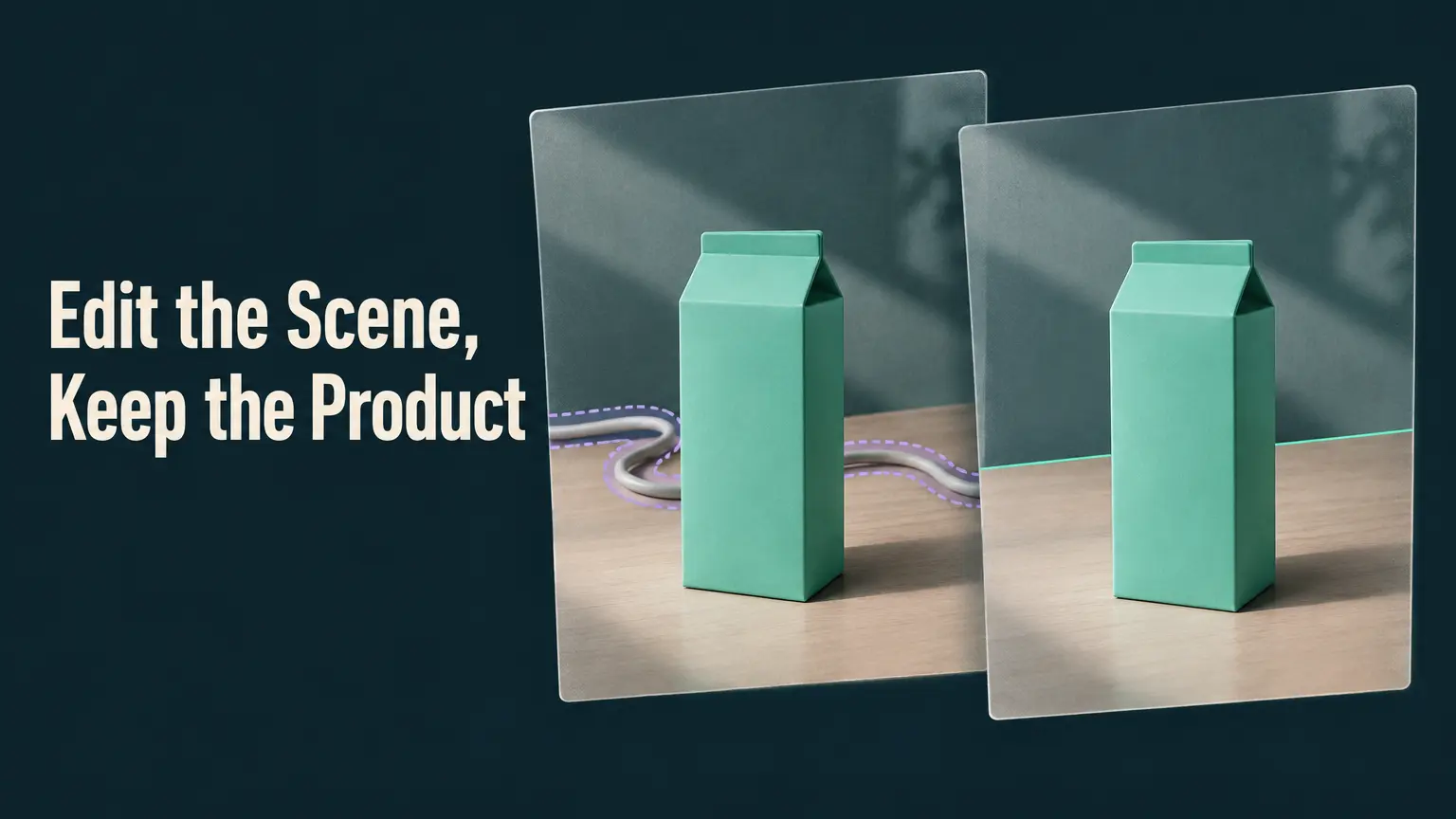
To edit an existing business image without losing what matters, start with the approved original, define what must not change, and make the smallest edit that can accomplish the task. Then compare the entire edited image—not just the changed area—with the original before anyone publishes it. A prompt or painted selection tells an editor what you want; it does not approve the result for you.
Start with the original and mark what must survive
Confirm that the team has permission to use and edit the source photo for the planned destination. Keep an untouched copy outside the working files, and give the editor a copy. Before uploading, check that the selected service accepts the file’s format and size, and that its upload conditions are suitable for the image. For example, AI Edit says it accepts JPG, JPEG, PNG and WebP images; that format list does not tell you whether your particular file meets every upload limit.
Write a short preservation list before editing. For a product photo, it might name the package shape and color, logo, every line of label text, visible product details, and the placement of the product in the frame. Identify the requested change separately. This gives the person reviewing the result something more precise than “looks fine” to check against.
Keep the source, instructions and candidates distinguishable. A simple working set is the untouched approved file, a copy for upload, the edit instruction, and separately named candidate files. AI Edit says it creates a new edited version rather than modifying the uploaded original, but keeping your own untouched copy makes the handoff independent of that product claim.
Choose the smallest suitable edit
Use a whole-image prompt when the intended change is broad—for example, when the entire setting needs a different treatment. Use a painted selection or inpainting when the problem is local, such as one distracting object behind the product. AI Edit describes its Edit mode as applying a prompt to the entire image and its Inpaint mode as changing a painted area. That distinction makes inpainting the more suitable starting point for a local removal; it is not a promise that everything else in the result will match the source.
A selection marks where you want the work done. The prompt should still say what belongs there afterward and what must remain unchanged. Review the whole frame after generation: a convincing repair beside the product is no help if the label has also changed.
A hypothetical product-photo edit
Suppose the approved source is a product-on-desk photo for a campaign placement. The product and its printed label are approved, but a loose cable in the background distracts from the shot. The requested output is the same photo without that cable—not a redesigned package or a newly composed product image.
The handoff to the editor would be:
- Input: an upload copy of the approved photo, with the untouched source retained separately.
- Target: paint over the visible cable using an inpainting control. Keep the selection focused on the distraction rather than the package.
- Instruction: describe the removal and the elements to preserve. For example: “Remove the loose cable from the desk background. Repair the exposed desk area so it fits the surrounding surface. Keep the product’s position, shape, color, label wording, logo, lighting and overall composition unchanged.”
- Output for review: save the resulting candidate separately from the source. Do not replace the approved file merely because the removal looks plausible at a glance.
This is an example of what to request, not a result known to work on any particular photo. If the repair is poor, make another attempt from the approved source with a more specific description of the background. If a candidate changes protected content, reject it rather than treating the prompt’s preservation instruction as proof that the content survived.
Compare the candidate with the approved photo
Put each candidate beside the original and inspect both at full size. Start with the requested area: is the cable gone, and does the repaired desk have believable edges, texture and lighting? Then move deliberately across the rest of the image. Read the label character by character, check the logo and package shape, and look for shifted objects, changed shadows, smeared edges or other changes outside the selected area. AI Edit advertises a before-and-after comparison slider, which can help with this inspection, but the decision still belongs to a reviewer.
Finally, view the candidate at its intended placement and display size. A repair that passes when zoomed in may still look conspicuous in a cropped layout; a tiny change to label wording may be easier to catch at full size. Export or hand off only the version that passes both checks. Record which source and candidate were compared so the publication team receives the approved file, not an earlier attempt.
Clear the final file for its destination
Image quality and permission are separate approvals. Before publication, confirm that permissions for the source photo—and any needed permissions from depicted people—cover the intended edit and use. Check the selected service’s applicable terms for the output and the planned commercial use. As one example of why the distinction matters, AI Image Editor says paid subscribers receive commercial usage rights for transformed images. That statement addresses its transformed output; it does not establish that a team had rights to upload or alter the source photo. Free access or an editor that requires no sign-up is not a rights clearance either.
The edit is ready only when the original remains available, the requested removal is identifiable in the approved file, protected product details match the source, the full-frame and placement checks find no unacceptable defects, and the relevant permissions and output-use terms have been checked.