Create and edit business media
How to Generate a Business Image and Check It Before Publishing
Create a business image from a clear brief, choose between a prompt and a reference, and check quality, implications and rights before publishing.
To generate a business image you can publish, start with its intended placement—not a vague request for something eye-catching. Write down what the image should show, generate options in the right shape, and have a person check the selected file for visual defects, misleading implications and usage rights. A realistic-looking result is still a generated image, not evidence that the depicted people or place exist.
Define the image before generating it
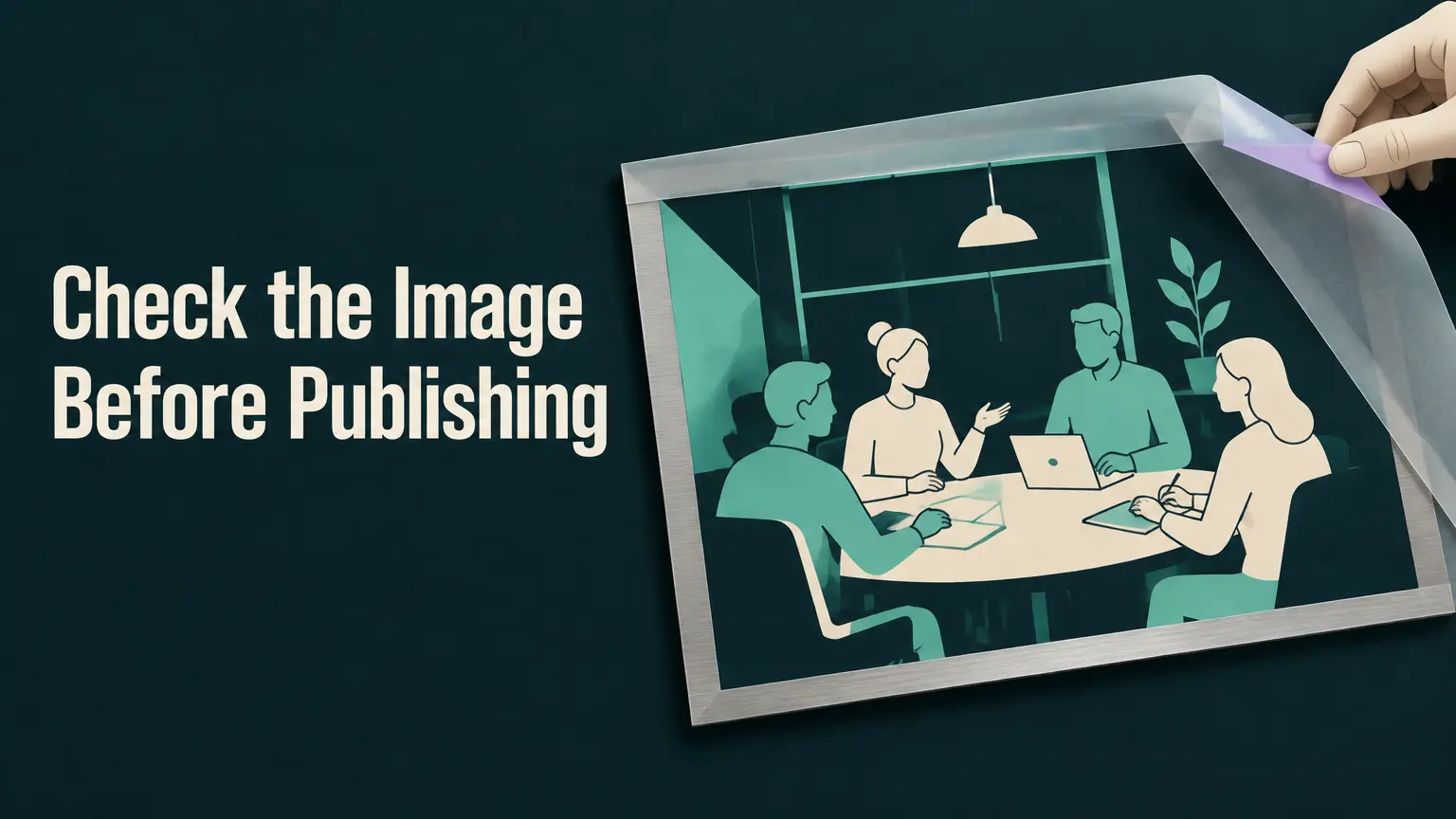
Suppose a small business needs a landscape website hero showing a fictional team meeting. The image should suggest collaborative work, but it must be presented as an illustration—not as a photograph of the company’s staff or premises.
Make a short brief that someone else could use to accept or reject a candidate:
- Placement: website hero, with room for a headline and a usable crop on the actual page.
- Format: landscape. If the chosen generator offers aspect-ratio controls, select a ratio that suits the placement rather than cropping an unrelated portrait later. EzMaker documents landscape generation for banners, while Magic Hour’s text-to-image page documents a landscape choice (EzMaker; Magic Hour).
- Subject and look: several fictional colleagues discussing work at a table; a clearly illustrated finish, restrained colors and soft light.
- Brand constraints: no visible third-party logos, recognizable company signage or readable promotional claims.
- What it must not imply: that these are actual employees, that this is a real company location, or that a particular client or partner attended the meeting.
Choose a text prompt if those requirements can be described without supplying a source image. Use a reference only when an approved visual reference would materially help specify the look or composition. That decision adds a rights and privacy step: confirm that you may upload and use the reference, including any identifiable people, logos or other third-party content it contains. EzMaker describes an Image to Image tool that accepts a reference upload; availability of an upload does not itself clear the material for your use (EzMaker).
Write a prompt that reflects the brief
The prompt is an instruction for generating candidates, not a substitute for inspecting them. EzMaker recommends describing the subject, style, mood, lighting, background and purpose, and says users can choose a style and aspect ratio (EzMaker). For this example, an initial prompt could be:
Create a landscape website-hero illustration of a fictional team meeting. Four fictional adults discuss ideas around a table in a generic, uncluttered workspace. Use a polished editorial-illustration style with natural-looking composition, a calm collaborative mood and soft daylight. Keep the background simple and leave open space on the left for a website headline. No visible logos, company signage, readable text or promotional claims. Do not depict a specific real business, person or location.
The requested open space and exclusions are things to verify in the output, not guarantees. If the first candidates put faces where the headline belongs, change the composition instruction and generate again. If the result looks too much like a documentary photograph, change the style instruction toward a more visibly illustrated finish. Change one requirement at a time where practical; that makes it easier to tell which revision helped. Keep the placement and the prohibition on misleading real-world details consistent across attempts.
Generate options, then reject poor fits quickly
Choose the landscape setting before generating. You do not need a particular batch size to compare options: save or note a few candidates from successive generations if necessary. EzMaker advertises batches of four or eight variations, but that is a feature of its own service, not a promise about every generator (EzMaker).
First compare candidates with the written brief. Does the subject read as a meeting? Is the style clearly illustrative? Is the open area useful once the hero headline is placed over it? Reject images with obvious defects before doing a finer review: distorted hands or faces, implausible objects, inconsistent furniture, stray lettering, accidental logos, or a crop that cuts off the subject. A visually striking image that fails the placement is not the right asset.
Take one promising candidate into the actual page layout or a representative mockup. Check it at the intended display size and crop, including a narrower view if the page uses one. If the headline obscures a person or the illustration loses its meaning when cropped, revise the composition or choose another candidate. The selection criterion is fitness for this placement and brief, not which thumbnail looks most impressive.
Review what the image might communicate
Ask a reviewer who did not write the prompt what they think the image depicts. If they read it as a photograph of the business’s own team or office, the image or its surrounding presentation needs changing. Keep the accompanying wording consistent with the fictional illustration; do not label the people as staff or the setting as a company location. Inspect any visible text separately: a generated sign or slide can appear to make a claim even if the prompt requested no readable words.
Then check rights before release. Review the applicable provider terms for the way the image was generated and will be used. Terms can vary by access level: Magic Hour says subscriptions and credit packs permit commercial use of outputs, while users without either purchase are limited to personal, non-commercial use (Magic Hour). A provider’s commercial-use permission for an output does not independently establish consent or rights in an uploaded reference, recognizable person, logo or other third-party material. Resolve those issues separately, or select a different candidate.
Finally, record which file passed review and publish that file—not an unreviewed regeneration or later revision. The workflow is complete when the asset fits the hero placement, a reviewer finds no material defect or misleading implication, the relevant terms and source material have been checked, and the published version is the approved one.